
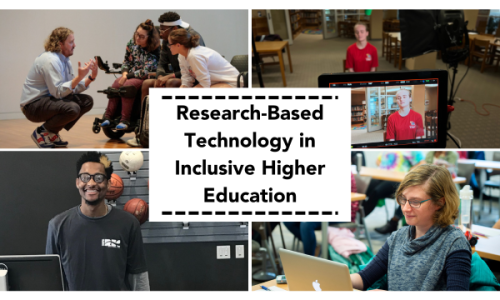
Technology tools have been developed or adapted to support students with intellectual disability for academic, employment, and personal success in postsecondary education. With technological assistance, students with intellectual disability have been found to make great strides in accessing information, learning new skills, and improving efficiency in academic and work settings.
As part of the Think College Inclusive Higher Education Network’s work to disseminate research and best practices related to improving higher education for students with intellectual disability, we identified peer-reviewed research articles that center on technology used to improve or support students with intellectual disability while in college. In this resource document, we share a filterable list of those research articles.
The technologies that have been researched encompass a wide variety of devices, applications, and software designed that enable independence and accessibility. Program staff, faculty, and coaches/mentors can use some of these tools to foster a college or university environment where students with intellectual disability thrive, gain independence, and meet their postsecondary goals.
Note: The focus of this resource list is technology tools that have been evaluated through peer-reviewed research. The research studies provide useful information for program staff to understand the specific conditions under which a technology tool may be beneficial and offer guidance on how to implement. Using peer-reviewed research to guide the selection of technology tools can reduce the risk of implementing unproven or ineffective tools. However, there are many other technology tools, in particular emerging tools such as those using artificial intelligence (AI), that have yet to be evaluated through research. We hope this summary will provide information for researchers looking to identify gaps in our understanding of evidence-based technology tools for students with intellectual disability in higher education that can be addressed through future studies.
The table below gives a peek into some of the technology tools that have been used in peer-reviewed research studies to improve or enhance the college experience for students with intellectual disability.
Keep reading to the end of this article for the full list of research articles and the types of technology used with students with intellectual disability in higher education, as well as instructions on how to utliize the listing.
|
Technology tool |
See this research study for more information |
|
|---|---|---|
|
Academics |
Text-to-speech assistive technology can be used to enhance reading comprehension. |
Bruno, L. P., Lewis, A. M., Kaldenberg, E. R., Bahr, P. A., & Immerfall, J. (2020). Direct instruction of text-to-speech software for students with intellectual disability. Education and Training in Autism and Developmental Disabilities, 55(4), 424-437. http://www.daddcec.com/uploads/2/5/2/0/2520220/etadd__december_55_4_2020.pdf#page=63 |
|
Communication and social skills |
Messaging apps like iMessage, HeyTell, and Tango can be used to improve digital communication skills. |
Smith, C. C., Cihak, D. F., McMahon, D. D., & Coleman, M. B. (2019). Examining digital messaging applications for postsecondary students with intellectual disability. Journal of Special Education Technology, 34(3), 190–203. https://doi.org/10.1177/0162643418822107 |
|
Daily living |
Videos on mobile devices can be used to teach students important skills like withdrawing money from an ATM. |
Scott, R., Collins, B., Knight, V., & Kleinert, H. (2013). Teaching adults with moderate intellectual disability ATM use via the iPod. Education and Training in Autism and Developmental Disabilities, 48(2), 190–199. https://www.jstor.org/stable/23880639 |
|
Employment preparation |
A task analysis with pictures, text, audio support, video prompting, and/or video modeling can be used to support students in the workplace. |
Randall, K. N., Johnson, F., Adams, S. E., Kiss, C.W., & Ryan, J. B. (2020). Use of an iPhone task analysis application to increase employment-related chores for individuals with intellectual disabilities. Journal of Special Education Technology, 35(1), 26–36. https://doi.org/10.1177/0162643419836410 |
|
Email communication skills |
Digital literacy instructional procedures can be used to teach students to access, send, and receive emails across behaviors or different platform devices. |
Cihak, D. F., McMahon, D., Smith, C. C., Wright, R., Gibbons, M. M. (2015). Teaching individuals with intellectual disabilities to email across multiple device platforms. Research in Developmental Disabilities, 36, 645–656. https://doi.org/10.1016/j.Ridd.2014.10.044 |
|
Transportation/ Navigation |
Smart watches with compatible applications can be used to teach navigation skills and support students' independence in travel and transportation. |
Evmenova, A. S., Graff, H. J., Genaro Motti, V., Giwa-Lawal, K., & Zheng, H. (2018). Designing a wearable technology intervention to support young adults with intellectual and developmental disabilities in inclusive postsecondary academic environments. Journal of Special Education Technology, 34(2), 92-105. https://doi.org/10.1177/0162643418795833 |
Check out the full Technology Tools spreadsheet for more ideas on research-based technology strategies for supporting students in college!
How to use the spreadsheet:
- You can filter the Excel sheet by selecting the small down-arrow (v) icon that appears at the top-right of each column.
- Looking for something specific? When you select the down-arrow (v), you can enter a keyword into the 'Search' box.
- You will then have the option to choose 'Select All Search Results' with the keyword or manually select the keywords you want to see by checking/unchecking the boxes.
- Click "Apply".
- You will notice that the data is now filtered to display only the rows where the selected column contains the keyword you entered.
- To remove the filter and see all of the information again, click on the arrow+filter icon in the column header and select "Clear filter" from the dropdown menu. OR go to the Data tab on the Excel options, select "Filter" and click "Clear"